

How to transfer data from iPhone to iPhone


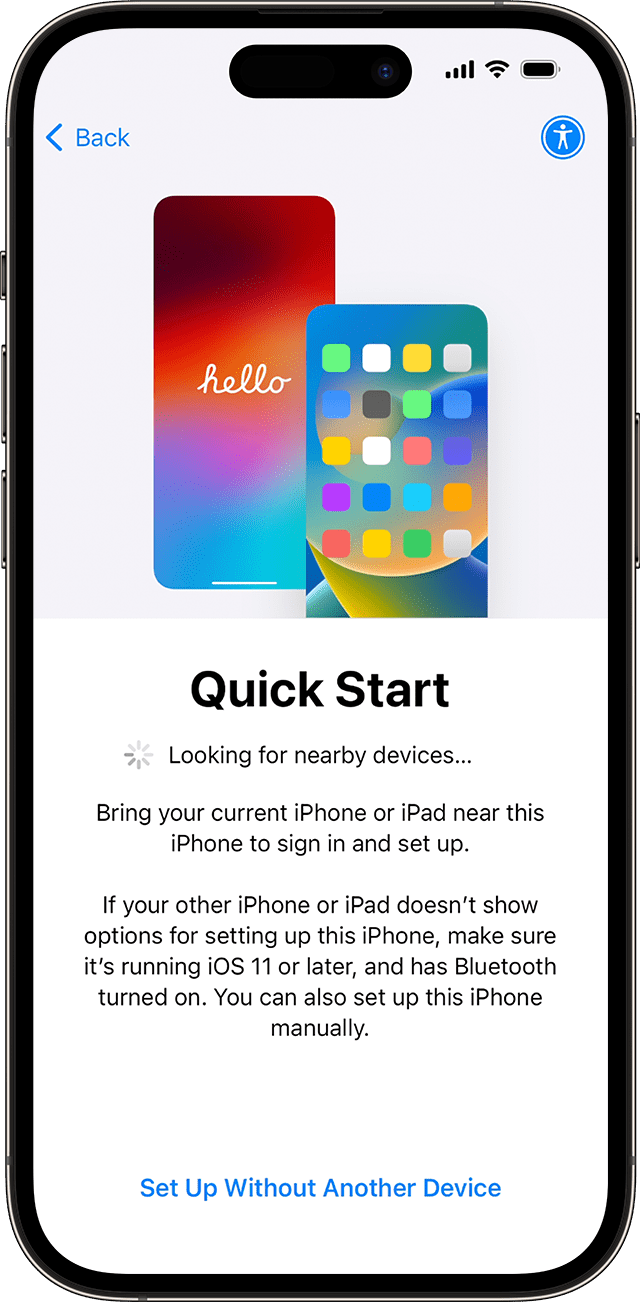
The fastest way to move everything from an old iPhone to a new one is Quick Start: hold the two phones near each other and it copies your apps, photos, messages and settings over automatically. If Quick Start isn’t an option, iCloud and a cable both get you there too, and this guide covers all three.
Method 1: Quick Start (the fastest way)
Quick Start works directly between the two phones over Wi-Fi and Bluetooth, no cables and no computer. It’s Apple’s default method during setup and the one most people should use.
- On your old iPhone, turn on Wi-Fi and Bluetooth, and keep it charged.
- Turn on your new iPhone and place it next to your old one.
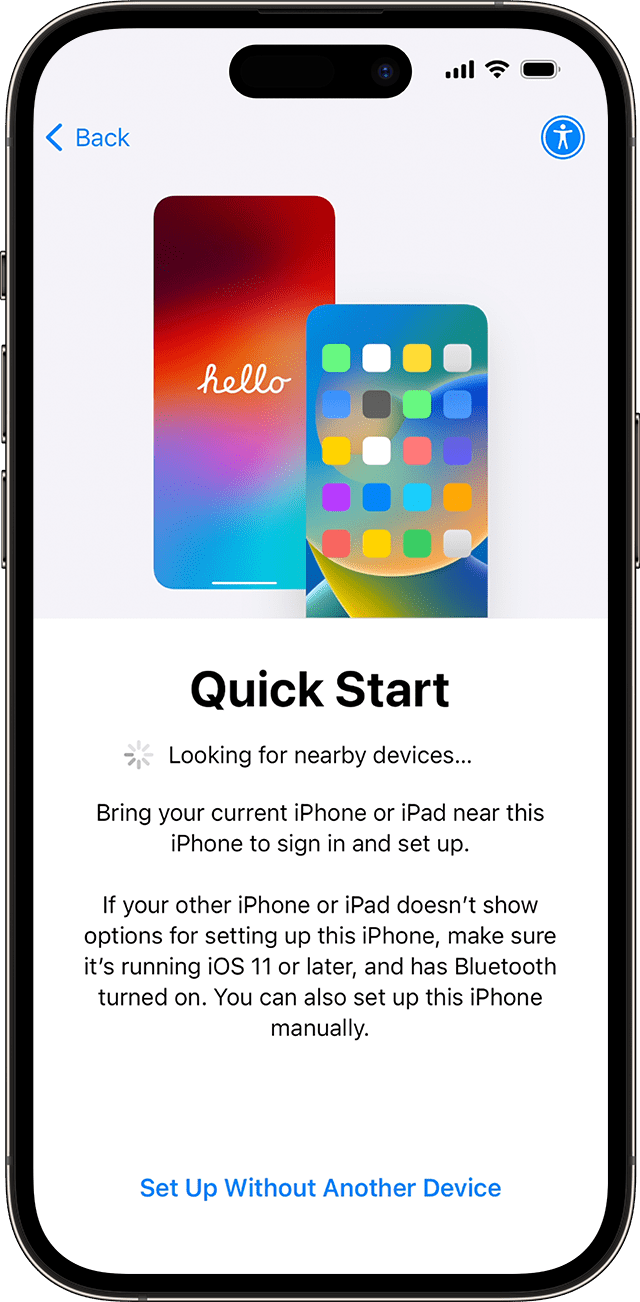
- Tap Continue, then hold the old iPhone over the new one so the animation on the new screen is centred in the camera viewfinder.
[Image: pairing animation — no static screenshot exists anywhere, it’s a live animation. Needs a real capture.]
- Enter your old iPhone’s passcode on the new device, then set up Face ID or Touch ID.
- Choose Transfer from iPhone to copy everything directly, or Download from iCloud if you’d rather restore from a backup.
[Image: Transfer from iPhone / Download from iCloud choice screen — real screen, no published shot found. Needs a real capture.]
- Keep both phones nearby and plugged into power until the transfer finishes. It can take anywhere from a few minutes to over an hour, depending on how much data you’re moving.
Method 2: iCloud backup and restore
Use this if your old iPhone isn’t nearby, or you’d rather set up the new one from a saved backup instead of a live transfer.
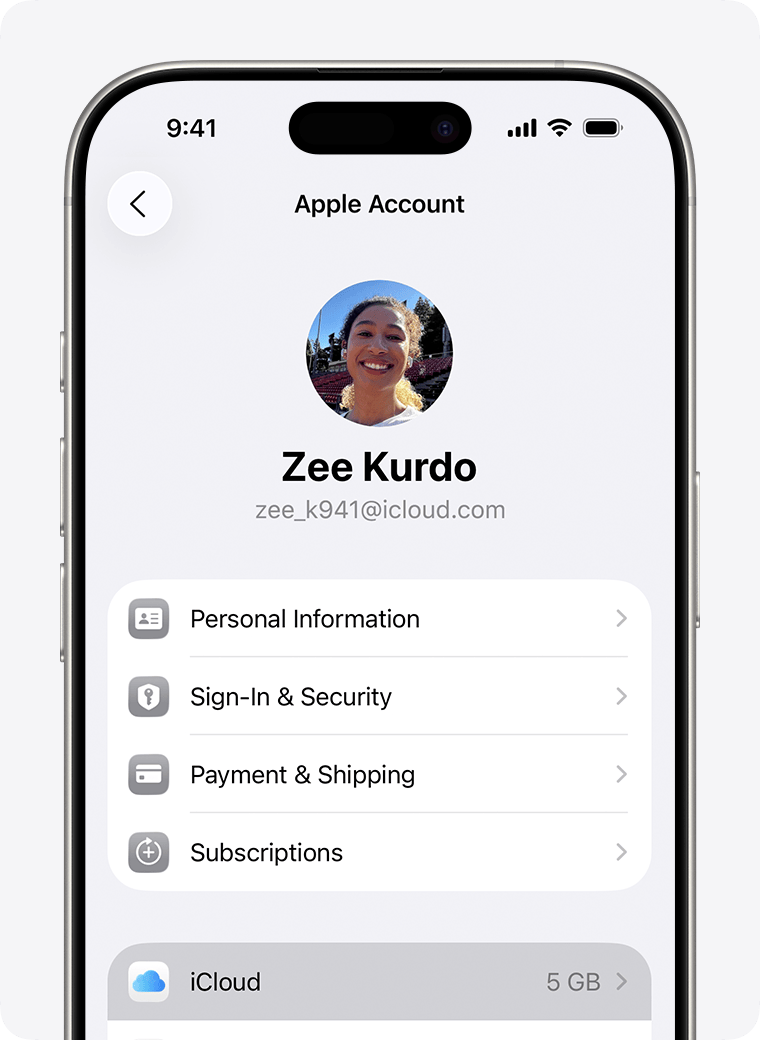
- On your old iPhone, go to Settings > [your name] > iCloud.
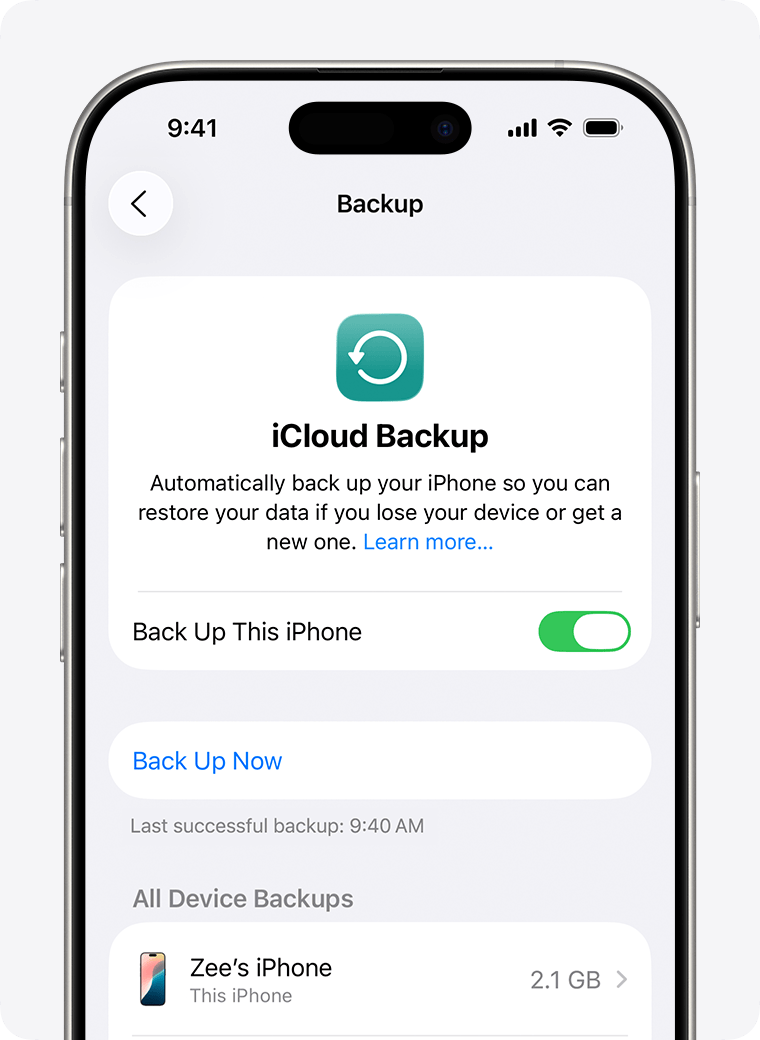
- Tap iCloud Backup, then tap Back Up Now and wait for it to finish.
- Turn on your new iPhone and start the setup process.
- On the Apps & Data screen, choose Restore from iCloud Backup and sign in with your Apple ID.
- Pick the most recent backup and wait for it to download.
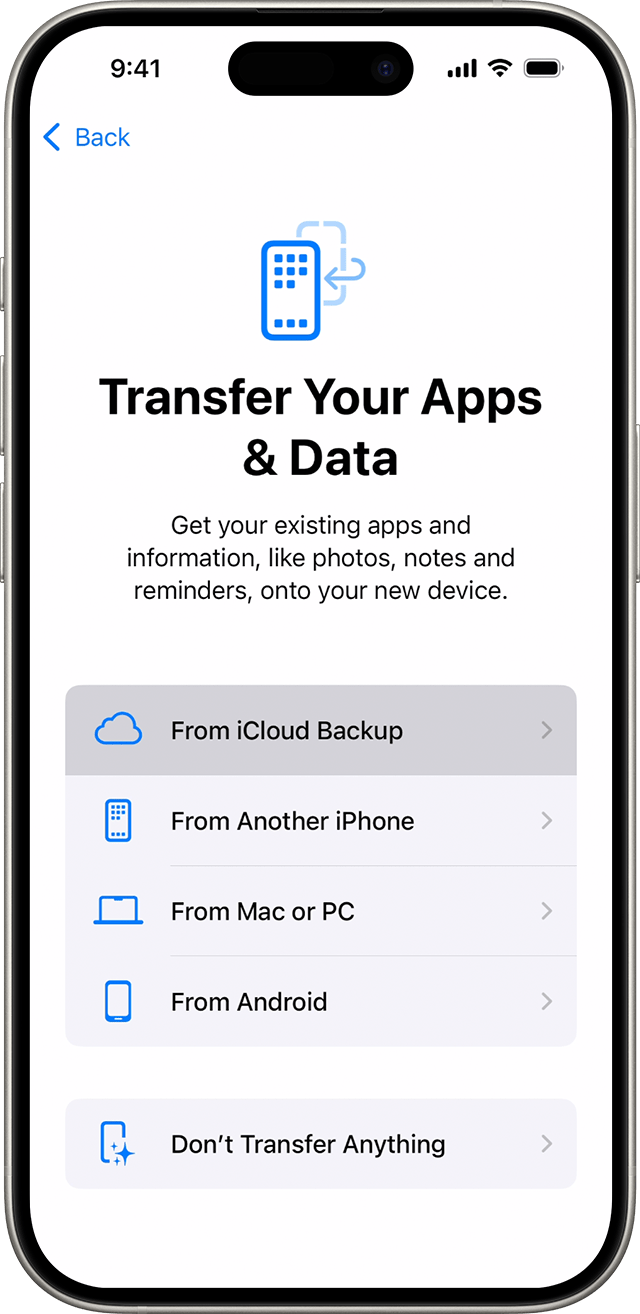
Method 3: wired transfer with a Mac or PC
This is the option if you’d rather not rely on Wi-Fi, or you’re moving a large amount of data and want it to go faster over a cable.
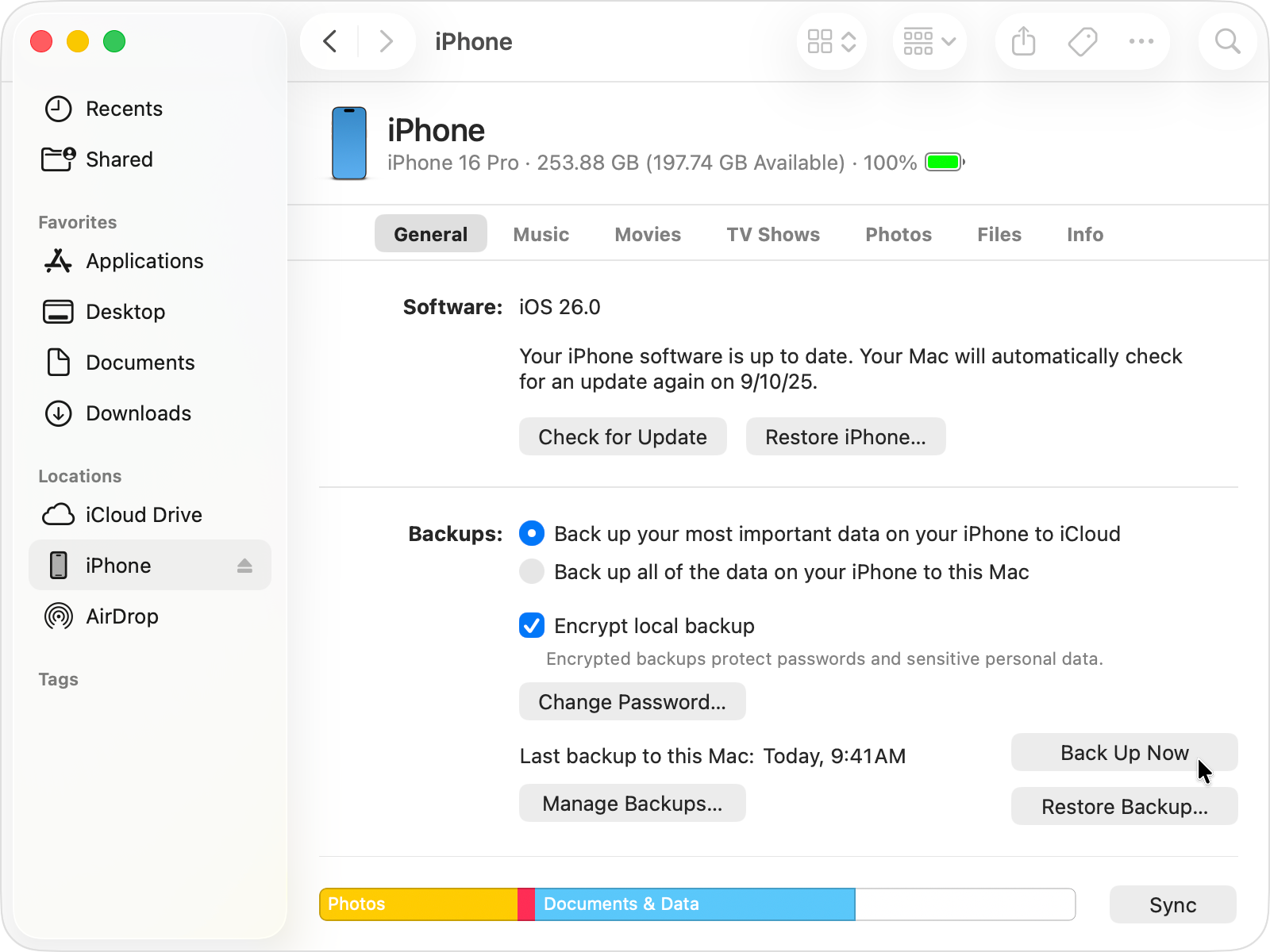
- Connect your old iPhone to your Mac or PC and open Finder (Mac) or iTunes (PC).
- Select your device, then click Back Up Now.
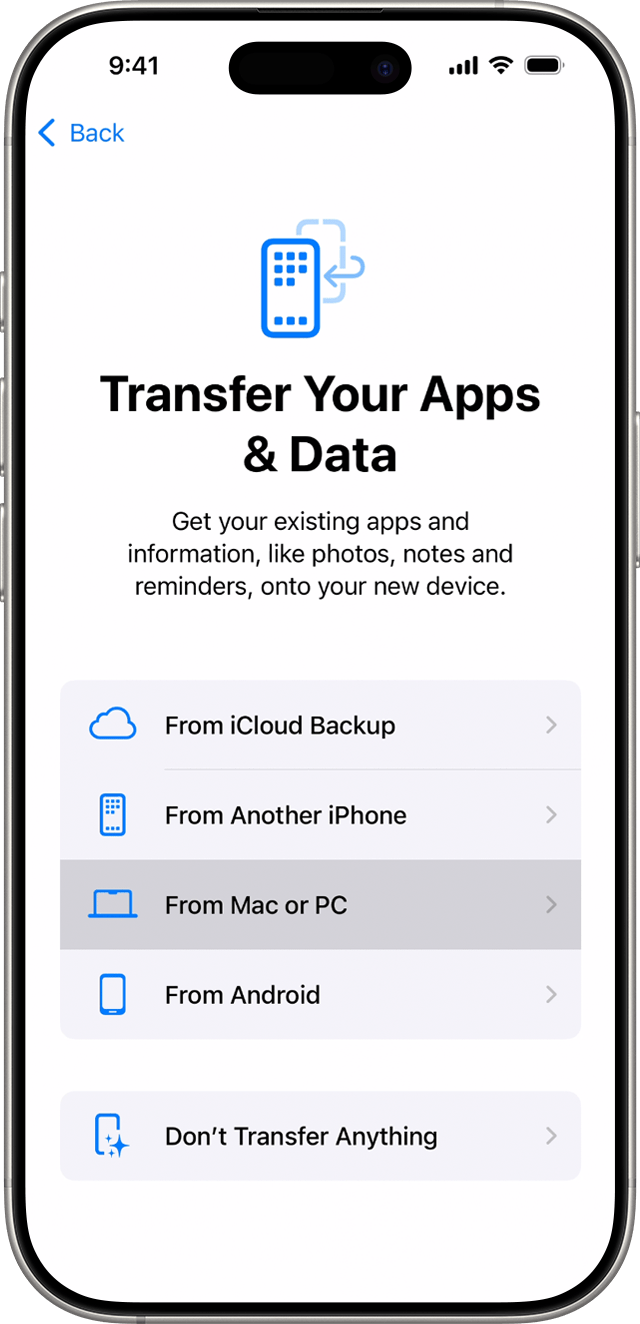
- Turn on your new iPhone, and during setup choose Restore from Mac or PC on the Apps & Data screen.
- Connect the new iPhone to the same computer, select it in Finder or iTunes, then click Restore Backup and choose the backup you just made.
Already set up your new iPhone? Here’s what to actually do
Quick Start and the iCloud restore only work during initial setup. Once a new iPhone has gone through setup, there’s no built-in way to merge more data into it, Apple’s own transfer tools only run on a fresh device.
To fix that, back up your old iPhone (iCloud or a cable, either works), then on the new iPhone go to Settings > General > Transfer or Reset iPhone > Erase All Content and Settings to wipe it back to the setup screen, and restore from that backup.
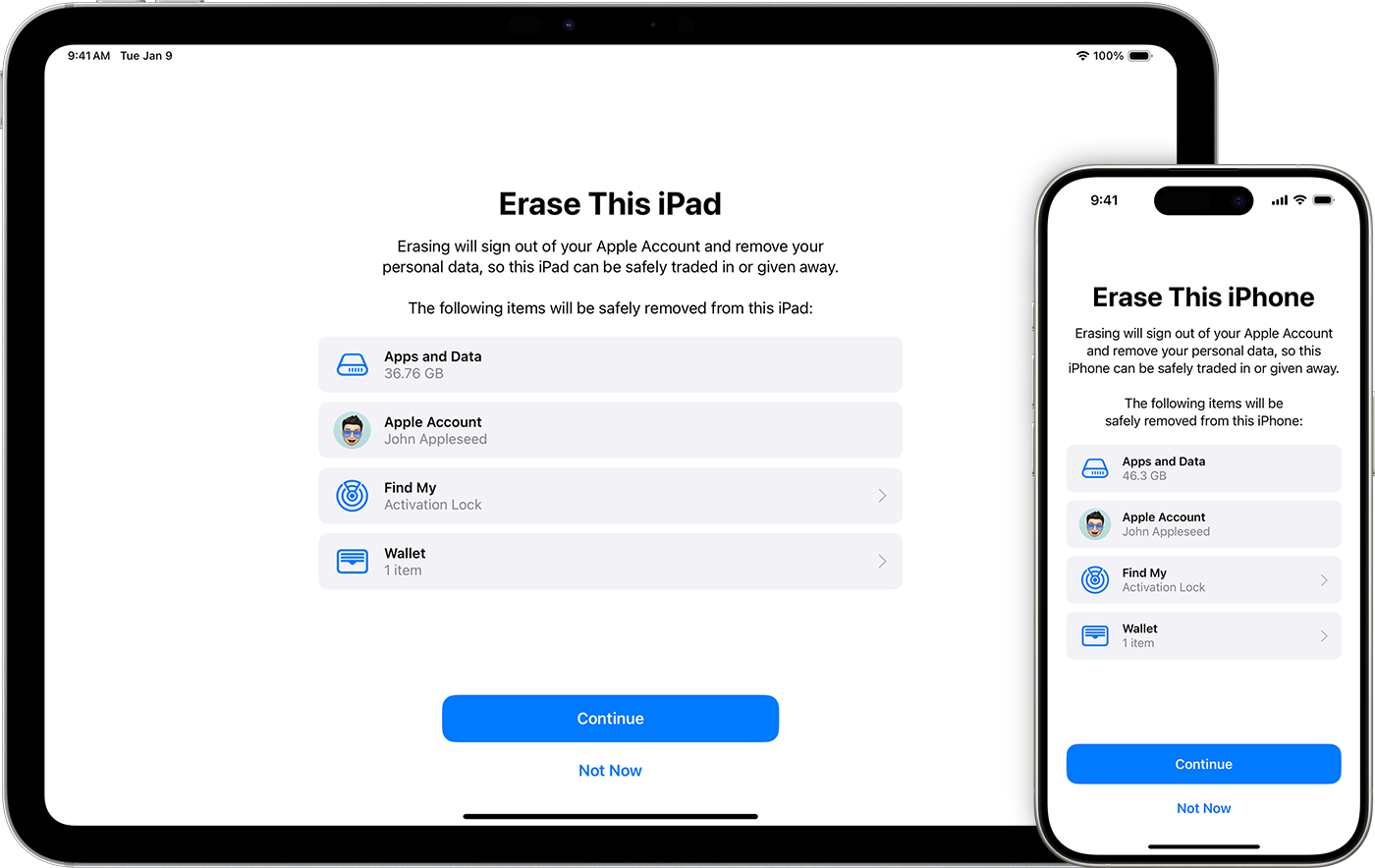
That wipes anything already on the new phone, so back that up first too if you’ve already added things to it. If you don’t want to erase it, you can still move data app by app: turn on iCloud Photos on both phones for photos, sync contacts and calendars through iCloud, and use each app’s own transfer tool (WhatsApp included, see the FAQ below) for anything else.
FAQs
Do I need to move my SIM card before I transfer data?
No. Moving your SIM card doesn’t affect the transfer at all, it only affects which phone has cellular service. You can swap it before, during or after. If you use an eSIM, Quick Start can transfer it to the new phone automatically, without a physical card.
Will I lose my photos if I put my SIM card in a new phone?
No. A SIM card only stores network and account information, it doesn’t hold photos, messages or app data. Swapping it between phones has no effect on anything else on your device.
Can I transfer data to an iPhone that’s already set up?
Not directly. Apple’s Quick Start and iCloud restore only run during initial setup, so an already-set-up iPhone needs to be erased and taken back to that screen first, or you move things over app by app instead.
Does AirDrop transfer everything from my old iPhone?
No. AirDrop only sends the specific photos, videos or files you select, it doesn’t move your settings, messages, or app data. Use Quick Start, iCloud or a cable for a full transfer, and save AirDrop for sending a handful of files.
Can I transfer data if I no longer have my old iPhone?
Yes, as long as it had iCloud Backup turned on before you lost access to it. On your new iPhone’s setup screen, choose Restore from iCloud Backup and sign in with the same Apple ID to pull down your most recent backup.
Do my WhatsApp chats transfer automatically?
Not with Quick Start alone. Open WhatsApp on your old iPhone, go to Settings > Chats > Chat Transfer, and start that before you begin your main transfer so your chat history moves across with everything else.
How long does an iPhone to iPhone transfer take?
It depends on how much data you’re moving and your connection. A direct Quick Start transfer over Wi-Fi is usually the fastest option; restoring a large iCloud backup over a slow connection can take much longer.
Once your data’s moved, deal with your old iPhone
With everything safely on your new phone, the old one is just sitting there. If it still has Activation Lock on, turn that off first (Settings > [your name] > Find My > Find My iPhone) since a locked device can’t be sold or reused by anyone. Check your price for your iPhone, vendi pays the same day it arrives and covers £10 towards postage.
Sell your device
Sell your preloved devices instantly at the best price on the market with same-day payment!
Sell Now